Free to try · Offline-first · Nothing leaves the building
No more racing to type the reference while the pastor is already reading. WCM listens to the sermon and suggests the scripture, word study, sermon point or song as it is spoken. Your operator confirms with one tap, and nothing projects by itself. Songs, announcements, captions and recording live in the same app.
Free 30-day trial of scripture detection, with the full presentation software included and no account needed. When you are ready, request a license for your church to unlock Word Study, Sermon Points, captions, recording and more.
New in WCM 1.2.35
More screens, your own layouts, a planned order of service, the camera with the words, and your church's life on screen.
Every picture below is a real screen from WCM, taken during testing.
01 · More than one screen
Plug in a TV for the pastor, a feed for your livestream and a screen in the lobby. In Settings › Screens, give each one a job:
Not sure which screen is which? Identify screens puts a big number on each one.
02 · The stage screen
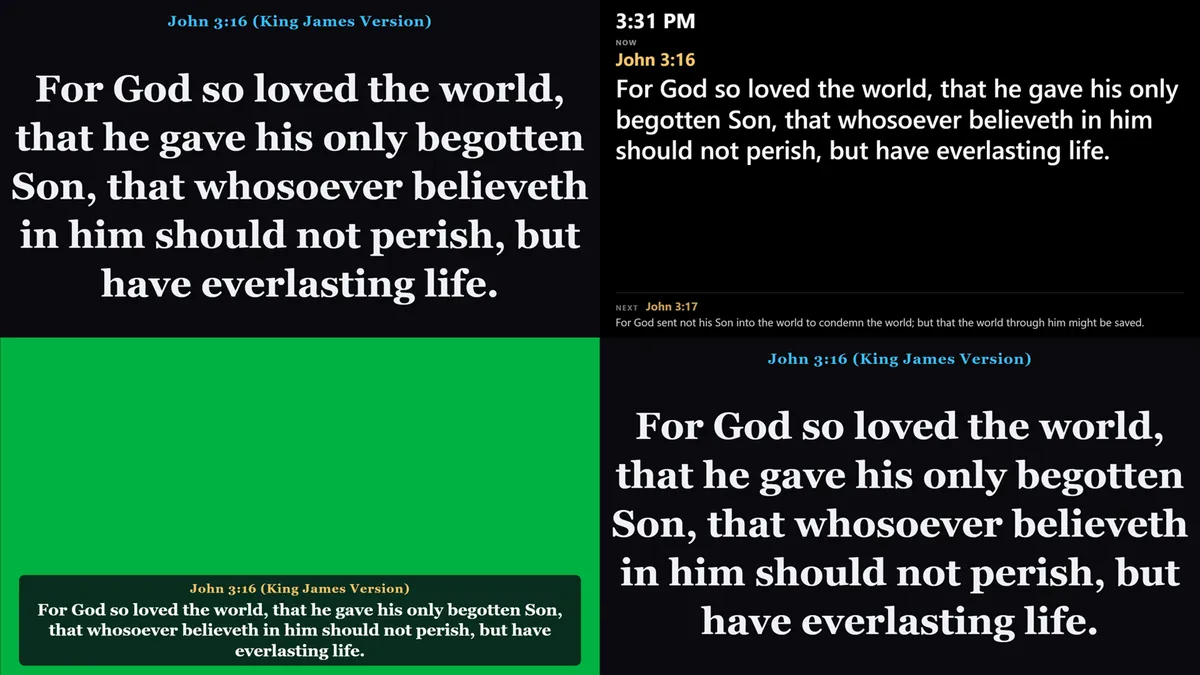
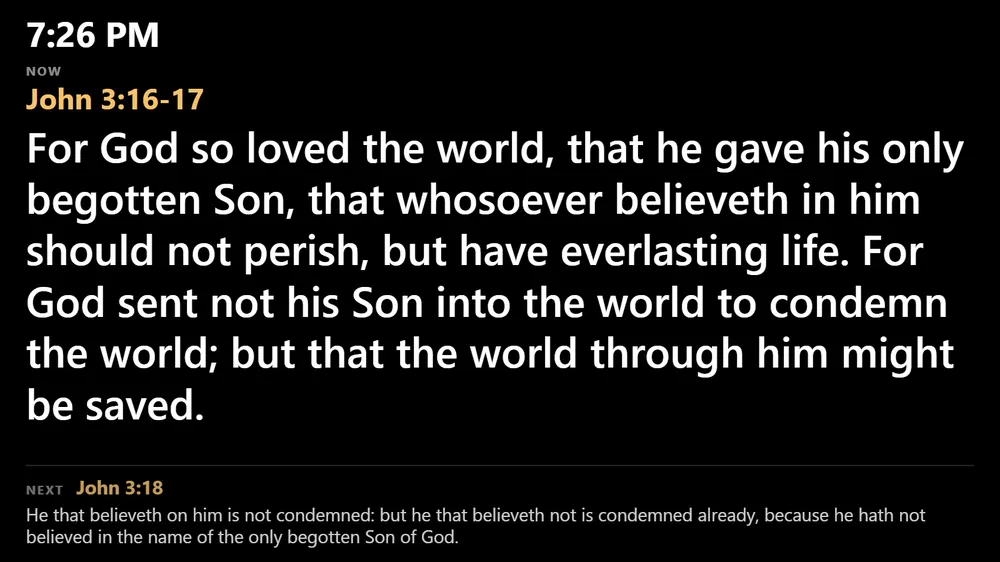
No more turning round to read the projector. The stage screen shows the verse in big letters, the next one underneath, the time and the countdown. Messages you send from the booth appear there too, and the Stage screen can have its own colours.
03 · Layout and slide editor
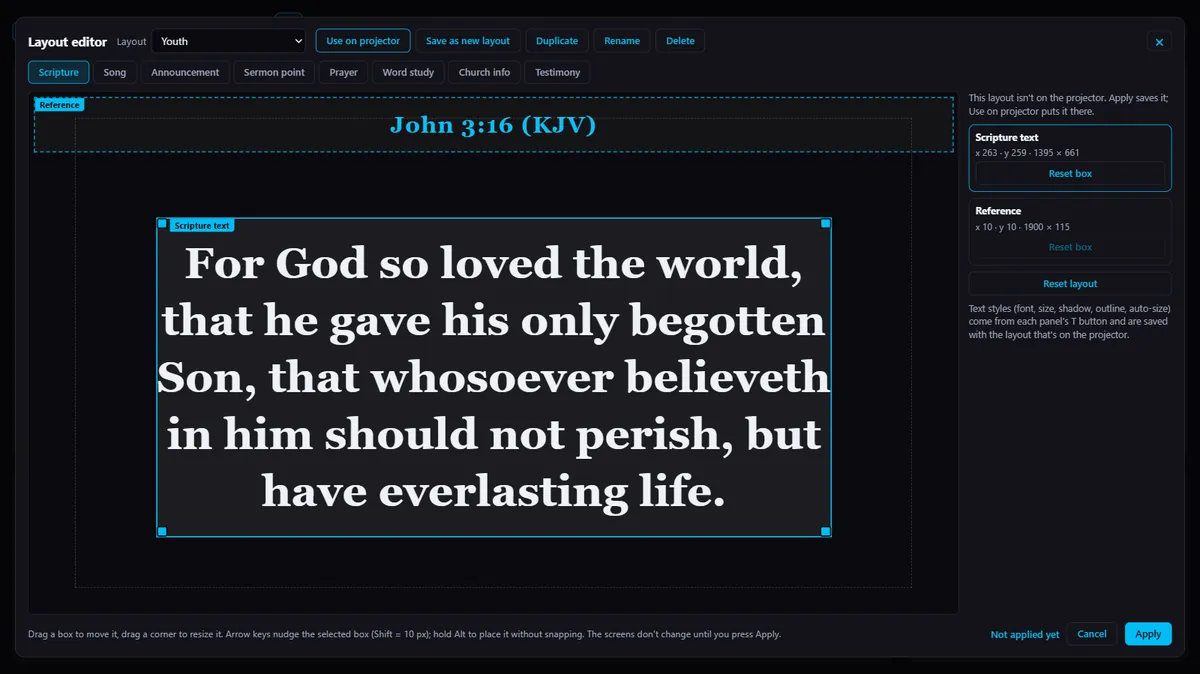
Save layouts with a name ("Sunday", "Youth"), use one for the projector and another for the livestream. Shows › Move text does the same for any slide in a show.
04 · Order of service
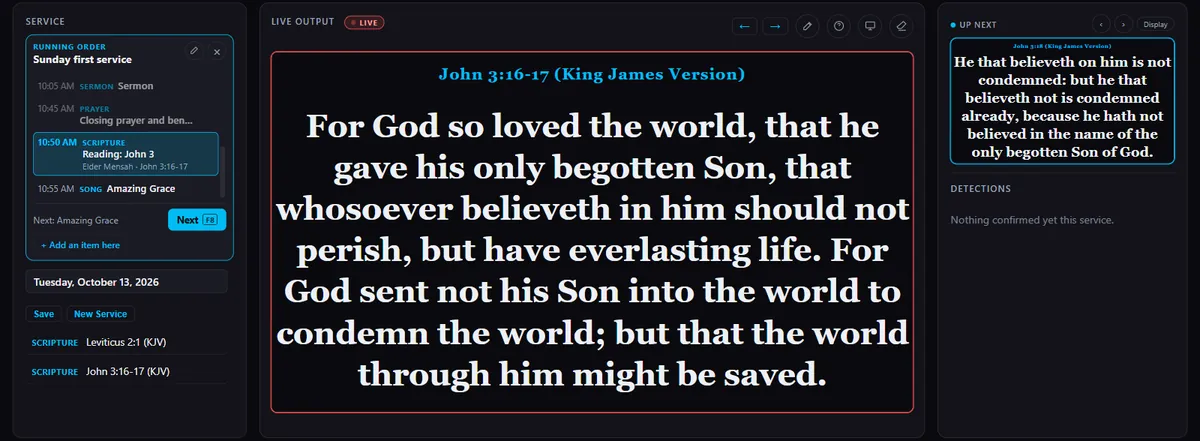
Plan in WCM (the Plan button) or on the church dashboard (Plan tab); both show the same plan. Each item says who leads it and roughly how long it takes. Start from a ready-made Sunday, Midweek or Special service, or from your own template.
Attach the pastor's sermon from WCM Study Bible to the Sermon item. Print any plan as a programme (PDF) or save it as a picture for WhatsApp.
05 · Camera with the words
On the Livestream screen, choose the camera full screen with the words along the bottom, or the words full screen with the camera in a corner box: small, medium or large, round or a rounded square.


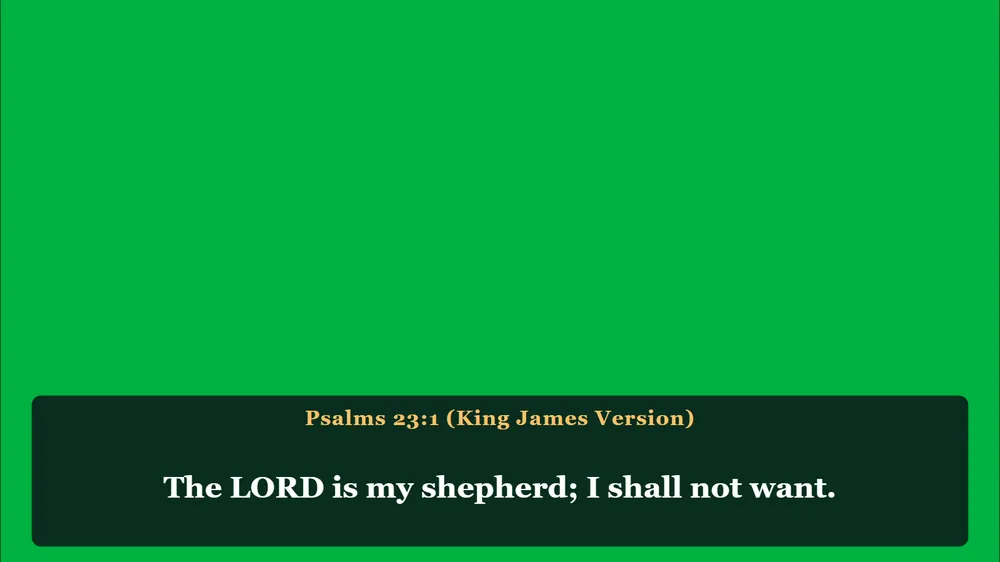
Camera in a corner box, and the livestream strip over green
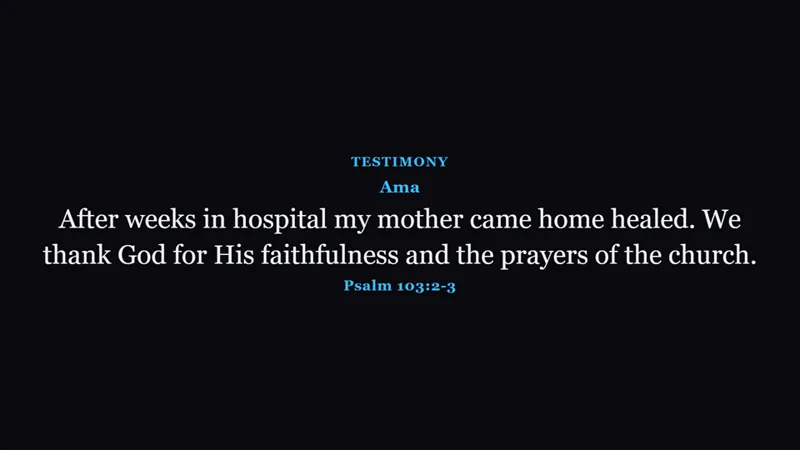
06 · Church Life on screen


Listening Assistant
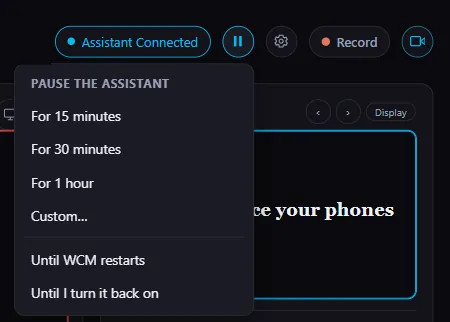
The Pause button opens a menu: 15 minutes, 30 minutes, 1 hour, a custom time, until WCM restarts, or until you turn it back on. The Assistant pill counts down, and WCM asks a minute before the end whether to keep it paused.
Recording
Press Record to capture the service with its sound in full 1920 x 1080, in Standard or High quality. Choose what goes in: the projector, the camera in a corner, or the camera with the words along the bottom. Trim the start or end right in WCM.
Follow along
Members scan the QR code and each scripture you show opens in their own Bible, with the sermon point and captions. Every service then stays on your church page, with your announcements.
On the free trial you can try the projector plus one more screen, the Default layout, two saved plans and the camera. A church licence unlocks every screen, named layouts, unlimited plans and the camera everywhere. When a trial ends nothing is deleted.
How it listens
A small companion process built into WCM transcribes the service speech-to-text on the same computer running the projection — no cloud API, no audio ever leaving the building. It watches for the patterns your service actually has: a spoken verse, a phrase like “the Greek word here is…”, a transition to the next point in a pre-loaded outline. When it catches one, it hands the operator a suggestion card with a preview of the actual text, not a fait accompli — nothing projects until someone confirms it.
01
Every detection is a suggestion first, shown with the real scripture text alongside it. The operator taps once to project it, or ignores it and keeps going — the service is never at the mercy of a mis-heard word.
02
Detection is deliberately conservative — tuned against real false positives, not just a clean demo, so it stays quiet rather than interrupting the service with a wrong guess. If a specific book keeps getting missed because of how your own pastor says it, teach the listener that exact wording right in Settings — no update to wait on.
03
Speech recognition, translation, and word-study lookups all run as local models on the booth computer, bundled with the install. A dropped internet connection mid-service changes nothing.
04
Optionally enroll the pastor's voice (or any speaker's) so detection only responds to them — background chatter, a live mic left open, or someone else entirely never triggers a suggestion. Off by default; every voice is heard until you turn it on.
See it in action
Real captures from a running instance — no mockups, no staged screenshots. This is what the congregation sees the moment a reference, a word study, or a sermon point gets confirmed.
What's inside
Shows, scripture, songs, looping backgrounds, and announcements work exactly like any projection software. The AI layer is additive — turn on only what a given service needs.
A spoken or read reference gets matched and staged for projection automatically — exact references, paraphrased quotes, and near-matches all catch, matched against a semantic index built from eleven translations' worth of real phrasing. KJV, World English Bible, and Berean Standard Bible come bundled; import any other translation your church already has a license for.
Grab additional Bible translations right from the app — no hunting for files to import. Compare translations side-by-side before deciding what to project (private to you, never shown to the congregation), or pair two together for a bilingual service, live. Real cross-references let you jump from any verse to related ones in one click.
Catches a pastor explaining an original-language word and projects the Greek or Hebrew term automatically — or type an English word yourself any time and search the same real lexicon by hand, no waiting for it to come up in the sermon.
Build your own song library, search it by title or lyric, tag verses and choruses, and display any song instantly. Already have hundreds of songs in another program? Bulk-import them from OpenLyrics, OpenSong, SongBeamer, and more. Musician-only chord charts sit alongside the lyrics — never shown to the congregation, with their own print view for rehearsal.
A rolling caption feed on the output screen, with an optional live-translated line running alongside it. Includes dyslexia- and low-vision-friendly caption fonts (OpenDyslexic, Lexend, Atkinson Hyperlegible) — most presentation software doesn't caption at all, let alone with a reader's own needs in mind.
The booth console itself speaks your language — full Spanish support today, menus and the built-in guide included, not just captions. French, Portuguese, and Korean are also available as console languages, with deeper coverage rolling out release by release. Pick a language on first launch, or anytime in Settings.
Spoken commands step through slides, jump to a specific verse, or switch translations without anyone touching the keyboard.
Pre-load a sermon outline and each point gets projected automatically as the pastor actually reaches it in the message.
Set a color, gradient, image, looping video, or a live camera feed behind scripture, songs, or any show — no more flat default slides. Fit, scale, blur, and a color overlay are all adjustable per background, and an oversized video is optimized automatically on import so it stays smooth even on a modest booth PC. Text gets the same control, per show — color, bold, italic, shadow, and outline, not locked to one default look.
Record the full output with audio on demand, choose Standard or High quality to fit your storage, and trim the start or end right from the app afterward — no separate editor needed. Broadcast it live as an NDI source for OBS or vMix, blank the projector at a keystroke without touching a cable, or start an on-screen countdown for a service about to begin or an offering pause. The console itself ships in three skins — Indigo, Midnight, Slate — so whoever's running the booth can pick what's comfortable to look at for two hours.
Keep a second campus's screen in step with the main one — scripture, songs, and announcements mirror over the internet in real time, so a satellite location's own install shows exactly what's live at the main campus, without a second operator running it there.
Pair phones to WCM and give each one a role: a Speaker device in WCM Study Bible that shows the preacher what is live, with the stage timer and messages from the booth, or an Assistant that controls slides and scripture from anywhere in the room.
Members scan a QR code and follow the service on their own phones: each scripture you project opens in their own Bible and translation, with the sermon point and live captions. Every service then stays on your church page, with your announcements and recording links.
Stage View
Whoever is preaching can see what is live without turning round. Stage View mirrors it to their phone in real time, over the internet, so it works on mobile data or a different Wi-Fi network, not just the church's own. It works in the browser, or with the free Android app. Want a TV on the stage instead? Give that screen the Stage job in Settings › Screens.
01
Whatever's live on the projector mirrors to the speaker's phone as it changes, seconds after the operator projects it — a real confidence monitor, not a second screen someone has to remember to glance at back in the booth.
02
A one-time join code works fine for a guest speaking once. For someone who preaches regularly, pair their phone instead — it reconnects on its own every service after that, no code to read out again.
03
Pair as many devices as your church actually uses — the lead pastor, an associate, a rotating guest list — and flag which ones are active for a given service. Two people sharing a message can both be live at the same time.
04
Send an active speaker a message that shows up instantly on their phone — “5 minutes left,” with an optional countdown that ticks down to “Time's up” on its own. Real two-way chat runs alongside it, operator to speaker and back, private to that one device.
Android
WCM isn't only the booth PC. These install separately and work for anyone in the church — not just whoever's running the console.
01
Stage View mirroring, remote slide and scripture control, and two-way Speaker chat — over the internet, no shared Wi-Fi required.
02
Free downloadA free Bible app for everyone in the church: several translations, Word Study, reading plans, Verse of the Day and Audio Bible, offline. On Android, or in any browser, including iPhone.
03
Free downloadFor pastors and teachers: interlinear Hebrew and Greek, seven commentaries and sermon preparation that syncs between devices, on Android, Windows and the web (iPhone too). The Android and Windows apps add a Bible dictionary, people and places on maps, and a timeline.
From the Study Bible
With the WCM Study Bible, the pastor sends the sermon title, speaker and scriptures straight to your WCM. The title and speaker are ready full screen, the scriptures wait in the Queue and the points in Sermon Points. If WCM is closed, the sermon waits in its inbox.
Download & license
No subscription, no seat-metered pricing tier to puzzle over. A church gets a name-bound WCM password once, and that's the whole billing relationship.
Free — 30 days
On Windows, if a blue box says Windows protected your PC, click More info, then Run anyway.
By request
Send your church's name and email. A real person replies with how to license WCM for your church.
Several campuses, overflow rooms or extra booths under one church name? Tell us what you need and we will set it up with you directly. A real person will reply.
Get started
Tell us who you are and we'll set your church up with the trial — most media teams are projecting within the hour.
Fill in the form and we'll follow up with the installer and, if you're ready, your church's password. Every screen in the app has a built-in guide (Help → App Guide) — a new operator can get comfortable without a training call.
Prefer email? Write to [email protected] directly.
Built and maintained by Philip — a solo developer, not a company. When you write in, a real person who actually wrote the code reads it and replies.