
Downloads for Windows, Android and iPhone
Windows apps come through the WCM Hub. Phone apps download directly, and the Bible apps also run in any phone's browser. The install steps are below.

WCM Hub for Windows
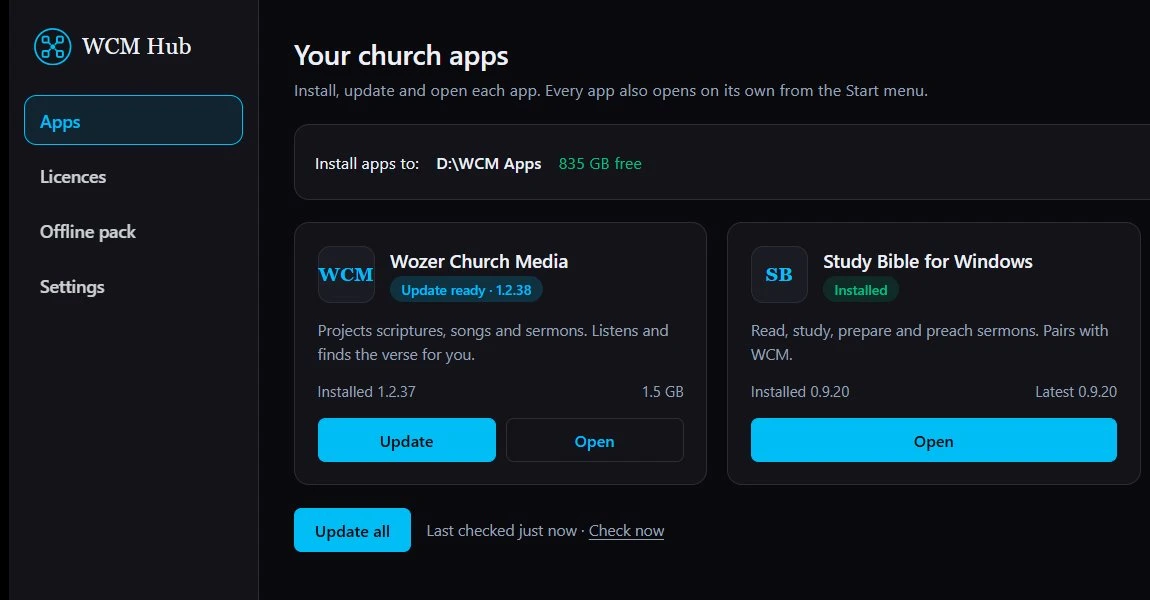
Installs WCM 1.2.53, with a free 30-day trial of every feature, and the Study Bible for Windows. Then it keeps them up to date with small downloads.
Want setup tips and news? Leave your email (optional)

WCM Study Bible0.9.43
For pastors and teachers · Pro key works on phone and PC
WCM Bible0.9.43
For every member · free · works offline

WCM Remote Control1.2.16
Pair it in WCM: Settings › Phones & remotes. A worship leader can be set to Songs only.
Install steps for each device
Our apps come from this website, not an app store, so your phone or PC may ask one extra question. Here is what to tap.
WCM and WCM Study Bible
- Download the installer and open it.
- If a blue box says Windows protected your PC, click More info, then Run anyway. In Microsoft Edge, if the download says it isn't commonly downloaded, click the … next to it, then Keep, then Keep anyway.
- The installer downloads the rest and opens the app when it is done.
Tiny updates
Only what changed downloads: about 17 MB instead of 1.3 GB.Safe, signed updates
Every update is checked and signed by Wozer Church Media before it installs.Dropped internet?
A download that stops carries on where it left off.
Installing on Android
- Tap Android APK next to the app you want.
- Open the downloaded file from your notifications or your Downloads folder.
- If Android asks, tap Settings, switch on Allow from this source, then go back.
- Tap Install, then Open.
Android may ask you to allow installing from this source, because the app comes from our website rather than the Play Store.
Put the Bible on your Home Screen in four taps
There is nothing to download from an app store. Open it once in Safari, add it to your Home Screen, and it opens like an app, even offline.
You are using another browser. Open this page in Safari first, then follow the steps.
- Open bible.wozerchurchmedia.com (or study.wozerchurchmedia.com) in Safari.
- Tap the Share button at the bottom of Safari (on iPad it is at the top).
- Scroll down and tap Add to Home Screen.
- Tap Add at the top right.
Always open it from the Home Screen icon. That keeps your church, your notes and your notifications together.
Joining your church from a QR code
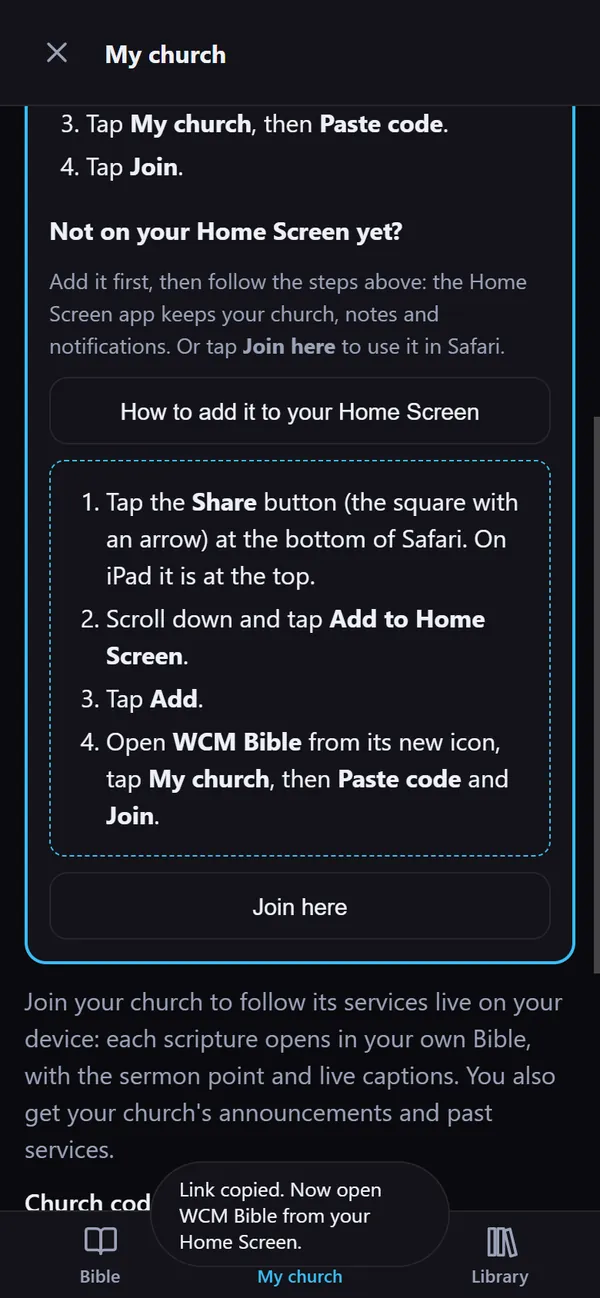
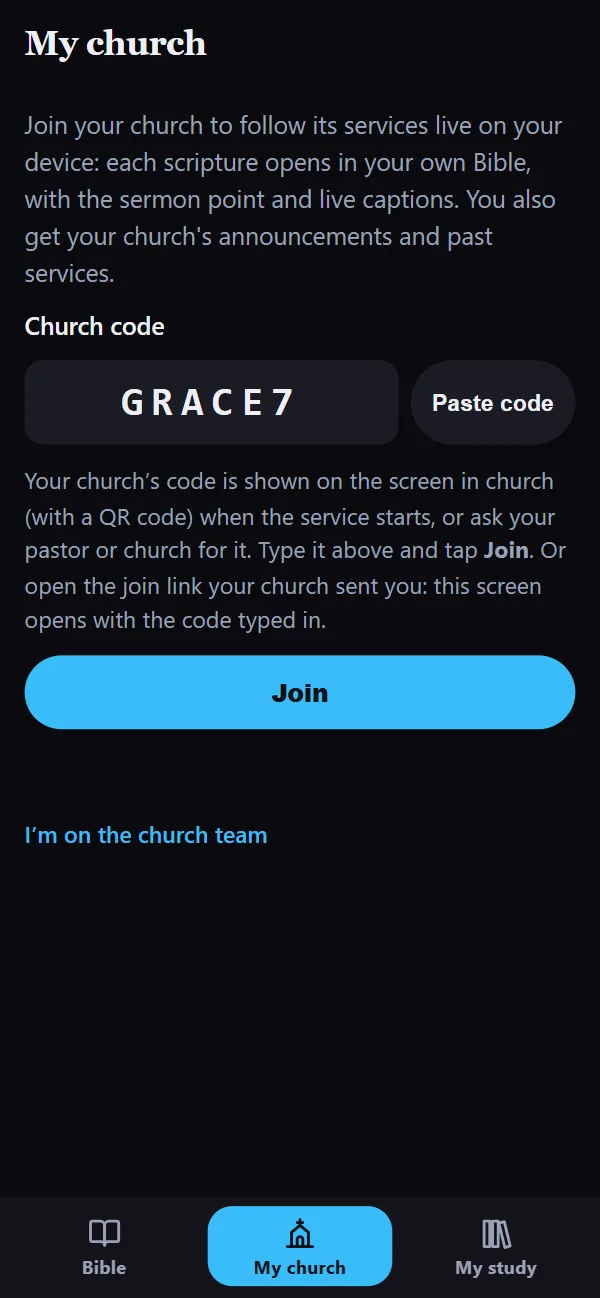
- Scan the QR code with the camera and tap the link. Safari opens and shows your church's code.
- Tap Copy code.
- Open WCM Bible from your Home Screen.
- Tap My church, then Paste code.
- Tap Join.